
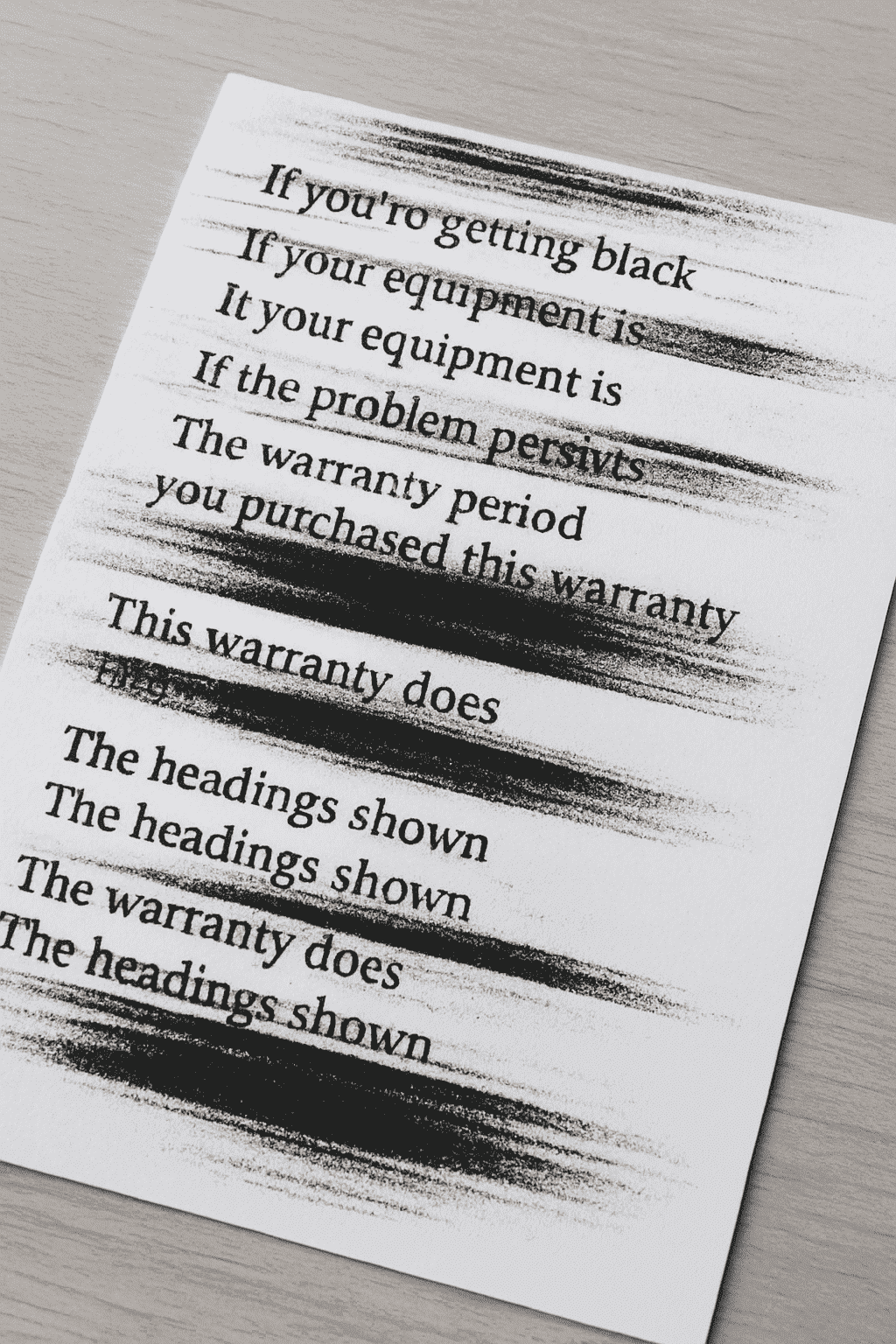
Black streaks on printed pages can ruin important documents. They appear on both laser and inkjet printers. However, the problem is usually easy to understand. Therefore, you can fix it quickly and continue your work.
Why Black Streaks on Printed Pages Appear
Black marks usually come from dirt, worn parts, or toner issues. In addition, damaged paper can also cause streaks.
👉 Poor Print Quality: Smudges, Streaks and How to Avoid Them
Dirty or Worn Rollers
Rollers often collect dust, toner, and paper fibres. As a result, they leave dark lines on the page.
For more help, check: HP Roller Cleaning Guide
Damaged or Overused Drum Unit
A worn drum makes repeating lines. Usually, the same mark appears at even intervals.
👉 Why Does My Print Have a Gray Background?
Excess or Leaking Toner
Too much toner or a leaking cartridge spreads powder inside the printer. Then, dark streaks appear across the page.
Also see: Brother Toner Help
Fuser Problems
A dirty or failing fuser melts toner unevenly. Therefore, you may see blotches or streaks.
👉 Why Horizontal Lines Appear on Printed Pages – Solutions
Extra help: HP Fuser Troubleshooting
Clogged or Dry Printhead (Inkjet)
Dry ink blocks the nozzles. Because of this, you may see faded text or missing lines.
More help: Epson Printhead Cleaning
Low-Quality or Damaged Paper
Paper with wrinkles or debris drags toner across the page. In addition, it may scratch internal parts.
How to Fix Black Streaks on Printed Pages
Clean the Printer
Turn off the device. Unplug it. Next, clean the rollers and the paper path with a lint-free cloth.
This step often solves early streaks.
Check Toner and Cartridges
Make sure the cartridges are installed correctly. Also, check for leaks or expiry dates.
Inspect and Replace the Drum
If the same mark repeats often, the drum may be worn. In this case, replacement is the best solution.
Service the Fuser
If streaks remain, the fuser may be damaged. Often, a technician can fix the problem quickly.
Run Printhead Cleaning (Inkjet)
Use the built-in cleaning cycle. Usually, one or two cycles restore normal print quality.
Use Better Paper
Choose smooth, clean, dry paper. Good paper, as a result, prevents many streaks.
How to Prevent Black Streaks on Printed Pages
Keep the Printer Clean
Remove dust and loose toner regularly. This way, you avoid build-up.
Use High-Quality Toner and Ink
OEM or premium compatible supplies reduce smudges. Also, they protect printer parts.
Store Paper Properly
Keep paper in a dry place. Humidity, for example, affects quality.
👉 Temperature & Humidity: How Environment Impacts Print Quality
Schedule Regular Maintenance
Technicians can clean fusers and rollers before they fail. Therefore, your device stays reliable.
Professional Help from Smart Service Hub
Sometimes streaks mean a deeper issue. It may be a failing transfer belt, worn rollers, or a bad fuser assembly.
Because of this, professional service can save time.
Our certified technicians repair HP, Canon, Brother, Xerox, Ricoh, Konica Minolta, Lexmark, and Kyocera. We work across Ottawa, Gatineau, Petawawa, Pembroke, Renfrew, Arnprior, Cornwall, and the Upper Ottawa Valley.
👉 Office Equipment Maintenance: Save Money and Prevent Downtime
Final Thoughts
Black streaks are annoying. However, with the right steps and regular care, you can keep your printer working smoothly and producing clean pages.
This helps prevent black streaks on printed pages in the future.