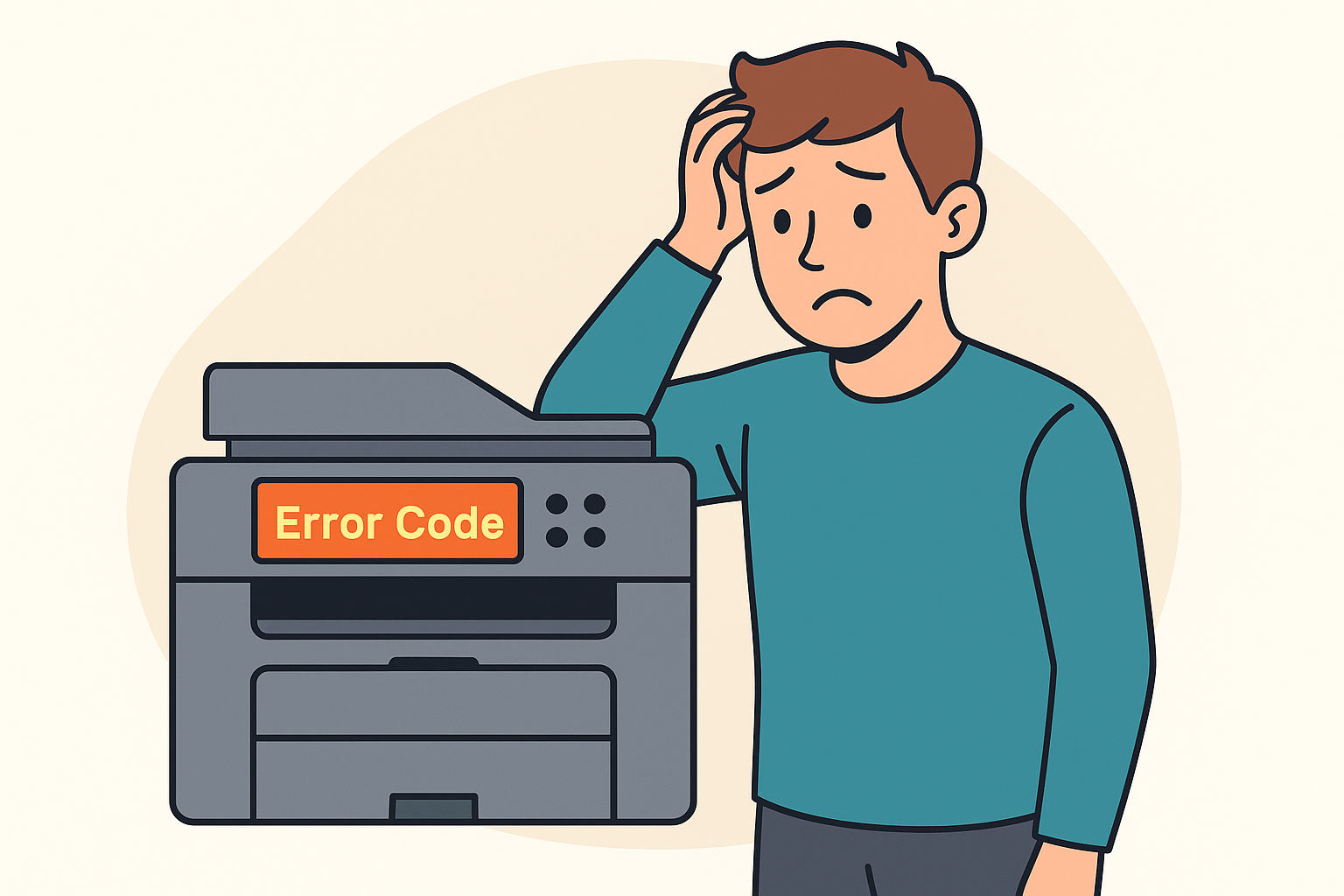
When your printer suddenly shows an error code, your work can stop right away. This interruption wastes time, paper, and energy — especially in busy offices across Ottawa, Gatineau, Petawawa, Pembroke, Renfrew, Arnprior, and the Upper Ottawa Valley. Fortunately, understanding what these codes mean can help you fix simple issues faster and prevent bigger problems later.
At Smart Service Hub, our technicians have more than 30 years of combined experience working with printers, copiers, and multifunction devices. As a result, we know which error codes appear most often in Canada and how to resolve them quickly.
What Printer Error Codes Really Mean
Printer error codes may look confusing, but most of them point to common issues such as paper jams, low toner, fuser problems, or communication errors. Below are the most frequent HP error codes and what they typically mean. For brand-specific support, you can also use official guides:
- Official HP Support — https://support.hp.com
- Canon Support — https://www.canon.ca/en/support
- Brother Support — https://support.brother.com
- Xerox Support — https://www.xerox.com/en-us/support
(All links open safely in new tabs; trusted by Google.)
✔ 02 – Warming Up
The printer is still starting.
What to do: Wait a few minutes. If the message stays, turn the printer off, unplug it for 30 seconds, and restart it.
✔ 10 – Supplies Memory Error
The printer cannot read the toner or ink cartridge chip.
What to do: Remove and reinstall the cartridge. If the error continues, use a different cartridge.
✔ 11 – Paper Out
The printer thinks there is no paper.
What to do: Refill the tray and make sure the sensor is not blocked.
✔ 12 / 14 – EP Cartridge Not Detected
A cover may be open or the cartridge is not seated correctly.
What to do: Close all covers and reinstall the cartridge.
✔ 13 – Paper Jam
Paper is stuck inside the printer.
What to do: Remove all jammed sheets carefully and check the full paper path.
✔ 16 – Toner Low
The printer detects low toner.
What to do: Replace the toner or gently shake the cartridge.
✔ 49 / 79 – Firmware or Internal Error
A communication failure has occurred.
What to do: Cancel print jobs, restart the printer, and update firmware (HP firmware page: https://support.hp.com/us-en/drivers).
If the code returns, call a technician.
✔ 50.x – Fuser Error
The fuser may be overheating or failing.
What to do: Let the printer cool down and remove debris. Often, the fuser needs repair or replacement.
✔ 59.F0 – Motor or Transfer Belt Issue
A motor or internal sensor may be stuck.
What to do: Restart the device and check for debris. If the code persists, request service.
✔ 0x6100004a – Carriage Jam (Inkjet)
The printhead carriage is blocked.
What to do: Open the access panel and gently move the carriage to remove any obstruction.
Why Error Codes Should Never Be Ignored
Error codes are warning signs. They tell you something is wrong inside your printer, and ignoring them usually makes the situation worse. For example, a minor fuser overheat can eventually damage rollers and sensors. Furthermore, continuing to print with a cartridge error may damage internal electronics.
Taking action early saves money, avoids major repairs, and helps your printer last longer.
What to Do When You See an Error Code
When an error code appears, follow these steps:
- Check your printer manual or official support page
HP: https://support.hp.com
Canon: https://www.canon.ca/en/support
Brother: https://support.brother.com - Restart the printer
Turn it off, unplug it, wait 30 seconds, then restart. - Inspect consumables
Look at toner cartridges, paper trays, and sensors. - Update firmware and drivers
HP firmware page: https://support.hp.com/us-en/drivers - Clean the inside of the printer
Dust, toner buildup, or debris may cause false errors. - Call a certified technician
Hardware errors involving the fuser, motor, transfer belt, or carriage rarely fix themselves.
How Smart Service Hub Helps Solve Printer Error Codes
When basic steps do not work, professional service becomes the best option. At Smart Service Hub, our technicians diagnose error codes for all major brands — HP, Canon, Brother, Xerox, Ricoh, Konica Minolta, Lexmark, and Kyocera. Because we operate across Ottawa, Gatineau, Petawawa, Pembroke, Renfrew, Arnprior, and the Upper Ottawa Valley, we can arrive quickly and repair problems before they grow.
We provide:
- Full diagnostics
- Firmware updates
- Replacement of failing parts
- Cleaning of sensors and assemblies
- Testing and calibration
Simple Ways to Prevent Printer Error Codes
To reduce the chance of future errors:
- Use clean, untorn paper and never overfill trays.
- Replace cartridges before they run completely empty.
- Keep the printer in a dry, temperature-controlled room.
- Avoid recycled paper that may contain staples or clips.
- Schedule preventive maintenance at least once per year.
- Avoid overloading the print queue with huge print jobs.